Choose the terminal that fitsyour brokerage platform setup.
ECN1 documents platform access paths for configured providers. Each guide should make account access, provider details, instruments, mobile support, and rules easy to understand.
Supported terminals
Platform access for brokerage clients.


Jump directly to the platform your trader uses.
Compare MetaTrader 5, cTrader, and the ECN One Web Terminal.

cTrader
Web-first terminal
Clean execution, clear charts, and a modern web/mobile workflow.

MetaTrader 5
Multi-market terminal
A powerful workspace for traders who prefer MetaTrader flow.

ECN One Web Terminal
Web trading terminal
A browser workspace for charts, watchlists, and account activity.
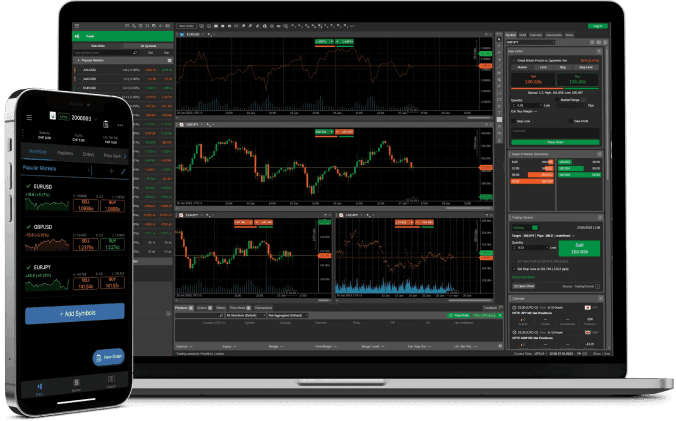
cTrader
Web-first terminal
Clean execution, clear charts, and a modern web/mobile workflow.
cTrader is a strong fit for traders who want a refined interface, clean charting, simple order panels, and a smooth experience across desktop, tablet, and phone.
Modern interface
Clean chart navigation, watchlists, order tickets, and account panels.
Web and mobile friendly
Useful when traders need fast access from browser, tablet, or phone.
Clear order control
A focused layout helps traders manage positions and risk limits.
Smooth onboarding
Simple credentials flow after the account is created.
Setup flow
Use this as the platform-specific onboarding checklist.
Important notes
Keep these visible before the trader starts.
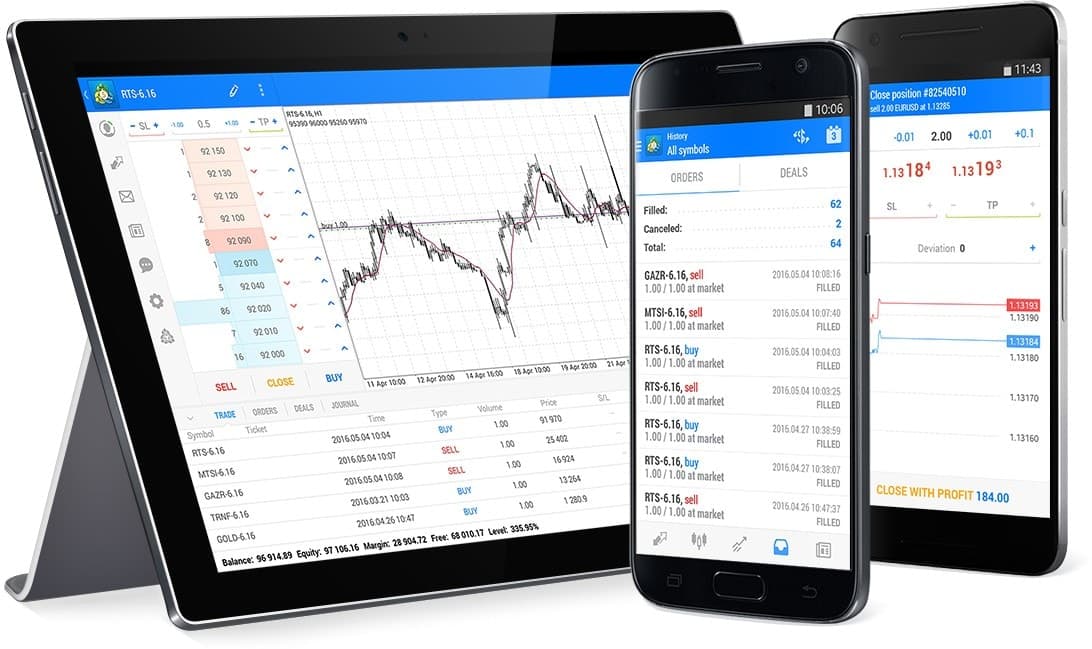
MetaTrader 5
Multi-market terminal
A powerful workspace for traders who prefer MetaTrader flow.
MetaTrader 5 gives traders a familiar charting layout, desktop stability, mobile access, and a large ecosystem for structured trading routines.
Professional workspace
Use multiple charts, profiles, templates, indicators, and order panels.
Mobile access
Monitor positions and account status from phone or tablet.
Flexible charting
Works well for multiple timeframes and structured trading routines.
Familiar platform
Many traders already understand MT5 login, server, and symbol flow.
Setup flow
Use this as the platform-specific onboarding checklist.
Important notes
Keep these visible before the trader starts.
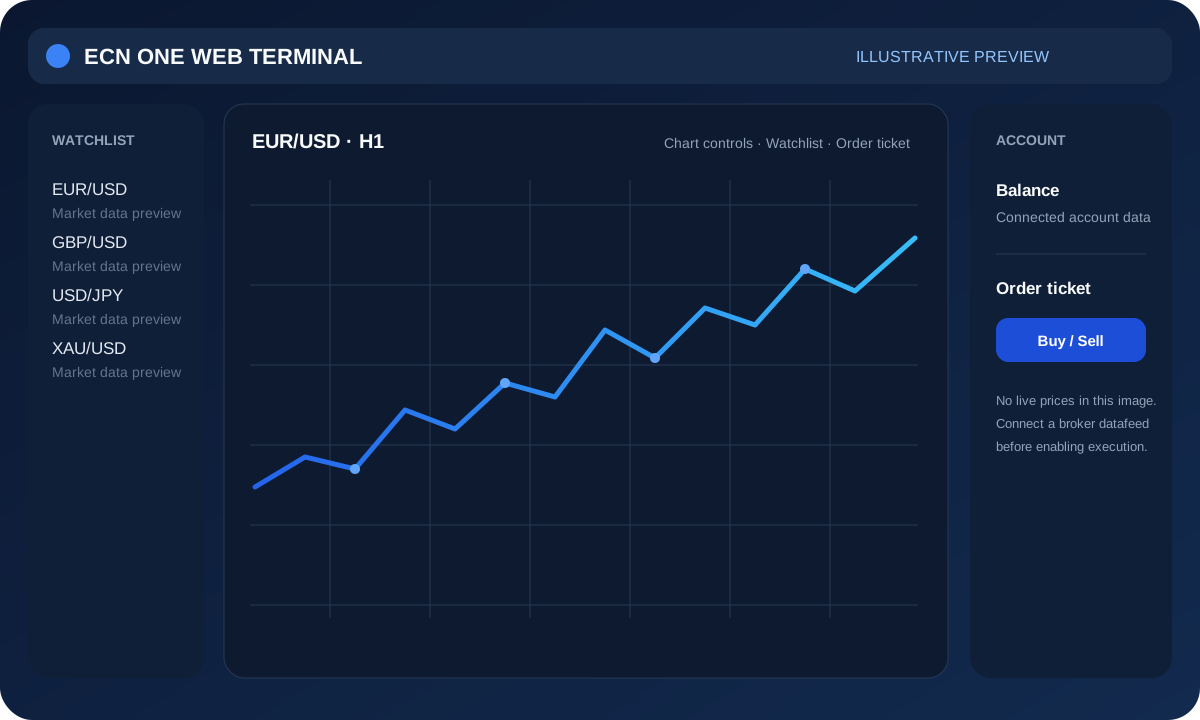
ECN One Web Terminal
Web trading terminal
A browser workspace for charts, watchlists, and account activity.
ECN One Web Terminal is the custom browser workspace. The current chart layer uses Lightweight Charts; a TradingView chart product, live market feed, and order routing require the corresponding licence and broker integrations.
Browser-first workspace
A custom interface for charting, market watch, and account views.
Chart layer
The current interface uses Lightweight Charts. TradingView Advanced Charts or Trading Platform require separate access and integration.
Broker connection
Live prices and order actions depend on the enabled datafeed and broker connection.
Account-aware access
The authenticated terminal is available at /terminal after the account workflow is configured.
Setup flow
Use this as the platform-specific onboarding checklist.
Important notes
Keep these visible before the trader starts.
What every platform guide should include before launch.
These items make the public platform page useful instead of being only a logo grid.
Platform access link
Each guide should show where the trader opens the terminal and whether desktop, web, iOS, or Android is supported.
Provider and login flow
Show provider/server name, login flow, account type, and where credentials appear inside the client area.
Symbols and instruments
Explain symbols, suffixes, sessions, commissions, spreads, swaps, and instrument availability.
Rules connection
Link every platform guide back to the Rules Center before traders use automation, VPN/VPS, weekend holding, or news trading.
Mobile and tablet support
Use responsive screenshots so each platform looks strong on phone, tablet, and desktop.
Support escalation
Tell traders what to send support if credentials, symbols, balance, provider, or account status are wrong.
A simple sequence for trading-account access.
This keeps traders from opening positions before the platform, account, and rules are confirmed.
Review your account and confirm platform availability.
Open the platform guide before signing in or placing a trade.
Receive credentials inside the client area after account creation.
Install the terminal or open the web platform.
Verify provider, account, balance, symbols, sessions, and account terms.
Start trading only after everything matches the account instructions.
Credential safety
Never share platform credentials with account management services, passing services, or unknown support accounts.
Risk visibility
Before trading, review account terms, margin, leverage, costs, and instrument specifications.
Connection issues
If platform connection, symbols, provider, or account balance look wrong, contact support before opening positions.
Platform availability, providers, access links, symbols, suffixes, leverage, commissions, swaps, data feeds, trading hours, supported instruments, and execution conditions must match the final operational setup before production launch.
Choose your platform after reviewing account access.
Compare the available charting workflow, account access, and device support, then review the relevant trading risks.